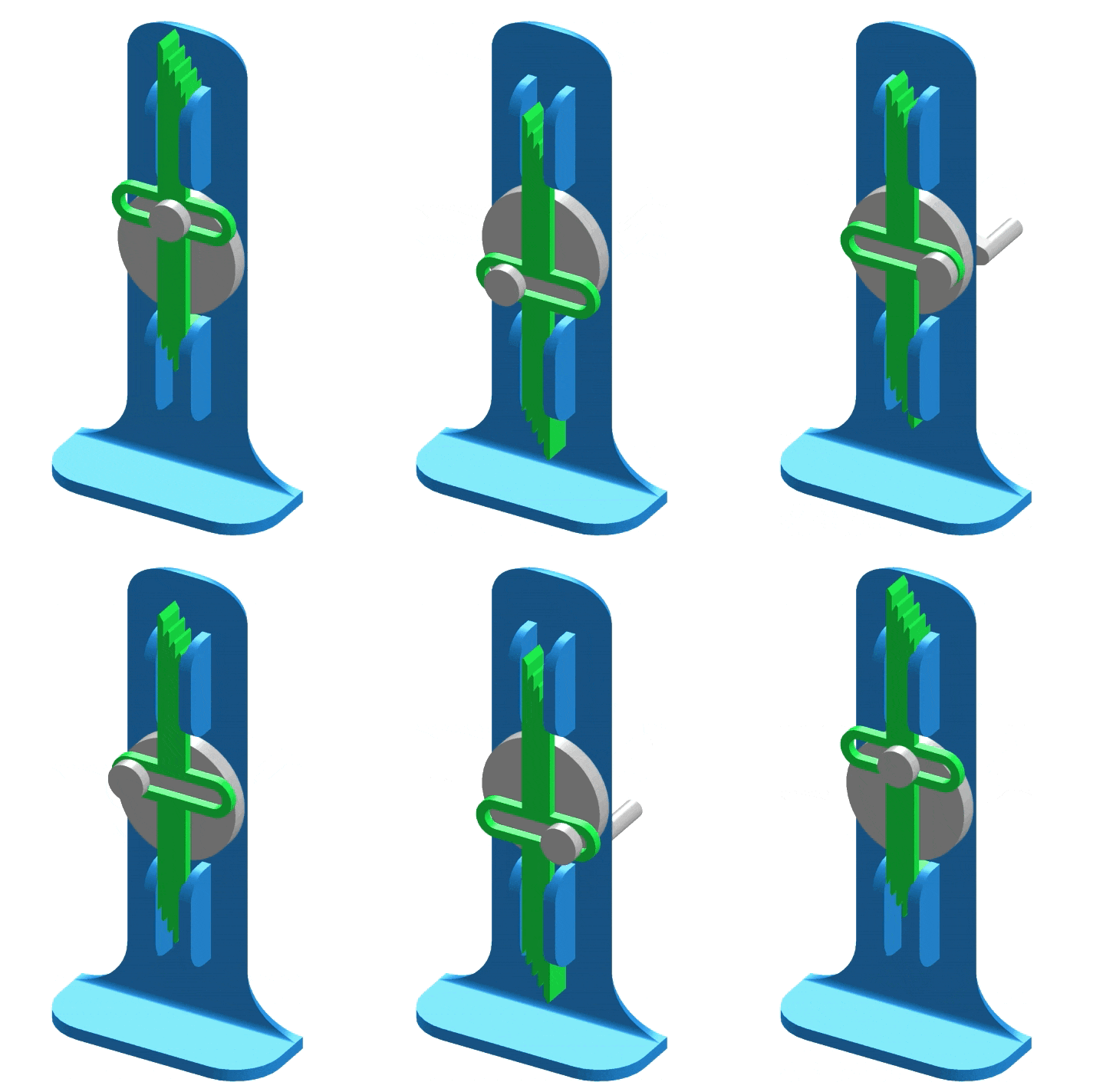
Master pure sinusoidal motion design with the Scotch yoke mechanism: an elegant solution for converting rotary motion to perfectly sinusoidal linear motion. Learn advanced parametric CAD with slot-driven mechanisms and clearance management. #FreeCAD #ScotchYoke #SinusoidalMotion #HarmonicMotion
🎯 Learning Objectives
By the end of this lesson, you will be able to:
Design slot-driven mechanisms with sliding contacts
Implement clearance-aware parametric geometry
Create pure sinusoidal motion systems
Model both rotational and linear sliding motion
Analyze simple harmonic motion through CAD verification
🔧 Engineering Context: Why This Mechanism Matters
The Sco tch yo ke mecha nism conv erts rot ary mot ion to lin ear mot ion with perf ect sinus oidal charac teristics. Unl ike the sli der-cra nk mecha nism, whi ch prod uces approx imate sinus oidal mot ion, the Sco tch yo ke crea tes mathem atically pu re sinus oidal displa cement, velo city, and accele ration thro ugh it s eleg ant sl ot-dri ven des ign.
Real-World Applications
The Scotch yoke delivers pure sinusoidal motion where precision matters:
Common Applications
Control valve actuators - Precise modulation with predictable motion profiles
Testing machines - Sinusoidal loading for fatigue and vibration testing
Reciprocating pumps - Oil-free compressor designs
Wave motion simulators - Accurate harmonic motion reproduction
Educational demonstrations - Visual representation of simple harmonic motion
Solenoid replacement - Mechanical alternative in low-speed applications
The Engineering Problem
Design Challenge: Given constant rotational input, create linear reciprocating output with mathematically perfect sinusoidal characteristics in a compact package.
Mechanism Components:
1. Rotating Crank
Circular disk with eccentric pin
Pin offset determines stroke
2. Yoke (Slider)
Block with horizontal slot
Constrained to linear motion
3. Pin-in-Slot Connection
Pin slides within yoke slot as crank rotates
Continuous sliding contact
4. Guide Rails
Constrain yoke to linear motion only
Prevent rotation
Perfect Sinusoidal Relationship:
Where:
= crank radius (eccentricity)
= angular velocity
= time
Key Characteristic: Yoke displacement is exactly proportional to sin(θ), where θ is crank angle.
⚖️ Mechanism Comparison
Feature Scotch Yoke Slider-Crank Motion profile Pure sinusoidal Approximate sinusoidal Complexity Simpler (no rod) More complex Stroke Stroke = 2r (compact) Stroke = 2r (requires longer rod) Side forces Minimal (guides handle) Significant (on cylinder walls) Wear Sliding contact (higher) Pivoting contacts (lower) Speed capability Lower (friction) Higher
When to Choose Scotch Yoke:
Pure sinusoidal motion required
Compact design needed
Lower speeds acceptable
Simple construction preferred
When to Choose Slider-Crank:
High-speed operation
Minimize wear
Standard parts available
📚 Mechanism Fundamentals
Design Parameters
Crank Radius (r)
Determines stroke length
Stroke = 2r
Primary parametric control
Slot Dimensions
Must accommodate full pin travel
Length: Stroke + margin
Width: Pin diameter + clearance
Guide Length
Ensures alignment throughout stroke
Must exceed total travel distance
Clearances
Critical for smooth operation
Typical: 1-2mm for small mechanisms
🎯 What You’ll Build
By completing this lesson, you’ll create:
Parametric Crank
Rotating disk with eccentric pin controlled by spreadsheet
Slotted Yoke
Sliding block with clearance-aware slot geometry
Guide System
Rails constraining linear motion while allowing smooth travel
Working Assembly
Complete mechanism demonstrating pure sinusoidal motion
🚀 Part 1: Getting Started
Project Setup
Launch FreeCAD
FreeCAD 0.21 or later
Create new document
File → New (or Ctrl+N)
Save immediately
Save as ScotchYoke.FCStd
Save Often!
Switch to Part Design workbench
Use the workbench dropdown at top
Workbenches Overview
Part Design
Creating individual parametric parts
Primary workbench for crank, yoke, guides
Sketcher
2D profiles for slots, circles, rectangles
Constraint-based geometry
Spreadsheet
Parameter control center
Formulas for calculated values
Assembly
Combining parts with motion constraints
Testing mechanism movement
TechDraw
Engineering drawings
Documentation with dimensions
💡 Part 2: Parametric Design Strategy
Sl ot-dri ven mecha nisms requ ire care ful atten tion to clear ances and dimens ional relati onships. Ou r param etric appr oach will automa tically calcu late sl ot dimen sions fr om cra nk rad ius and clear ance specif ications, ensu ring smo oth opera tion at an y str oke len gth.
Our Design Approach
🎯 Intelligent Parameter Control
We’ll control the Scotch yoke with:
Primary Parameters:
CrankRadius = 40 mm (determines stroke)
PinDiameter = 12 mm
Calculated Parameters:
Stroke = CrankRadius × 2 (automatic)
SlotWidth = PinDiameter + 2 mm clearance (automatic)
SlotLength = Stroke + 30 mm margin (automatic)
Change crank radius → entire mechanism updates with proper clearances maintained!
Design Workflow
Create parameter spreadsheet (with formulas!)
Create rotating crank with eccentric pin
Create yoke with horizontal slot
Create guide rails for linear constraint
Create base frame
Assemble with motion constraints
Create technical drawing
Test parametric updates and verify stroke
Why Formulas Matter
By using spreadsheet formulas for dependent dimensions (Stroke = 2r, SlotWidth = PinDia + clearance), we ensure geometric relationships remain correct when parameters change. This is intelligent design automation!
📊 Part 3: Creating the Parameter Spreadsheet
Building Your Parameter Table
Ensure Part Design workbench is active
Insert a spreadsheet
Insert → Spreadsheet
A “Spreadsheet” object appears in the tree
Double-click to open the spreadsheet
Create comprehensive parameter table
We’ll build this in the next section
Enter header row:
Cell Value Meaning A1 Parameter Column header B1 Value Column header C1 Unit Column header D1 Notes Column header
Enter primary parameters:
Cell Value Unit Notes A2 CrankRadius B2 40 C2 mm D2 Eccentricity - controls stroke A3 PinDiameter B3 12 C3 mm D3 Crank pin diameter
Add calculated parameters using formulas:
In cell B4, enter formula: =B2*2
Cell Formula/Value Result Notes A4 Stroke B4 =B2*2 80 Auto-calculates! C4 mm D4 Total travel (2r) A5 PinRadius B5 =B3/2 6 C5 mm A6 SlotWidth B6 =B3+2 14 Pin + 2mm clearance C6 mm D6 Pin dia + clearance A7 SlotLength B7 =B2*2+30 110 Stroke + extra C7 mm D7 Stroke + margin
Add yoke and crank geometry:
Cell Value/Formula Notes A8 YokeWidth B8 60 C8 mm A9 YokeHeight B9 80 C9 mm A10 YokeThickness B10 20 C10 mm A11 CrankDiskRadius B11 =B2+20 Auto-sized to crank radius C11 mm A12 CrankThickness B12 15 C12 mm A13 ShaftDiameter B13 20 C13 mm A14 ShaftRadius B14 =B13/2 C14 mm A15 GuideLength B15 200 C15 mm
Critical Step: Create aliases for all parameter values!
For each parameter in column B:
Click cell B2 (CrankRadius value)
Right-click → Properties
In “Alias” field, type: CrankRadius
Click OK
Repeat for all B column parameter cells:
B3 → PinDiameter
B4 → Stroke
B5 → PinRadius
B6 → SlotWidth
B7 → SlotLength
B8 → YokeWidth
B9 → YokeHeight
B10 → YokeThickness
B11 → CrankDiskRadius
B12 → CrankThickness
B13 → ShaftDiameter
B14 → ShaftRadius
B15 → GuideLength
Now you can reference Spreadsheet.CrankRadius throughout your model!
Close the spreadsheet when done (click the Close button).
Your parametric foundation with intelligent formulas is ready!
🔩 Part 4: Creating the Crank
Design Intent
⚙️ Crank Requirements
The crank is a rotating disk with:
Central shaft hole for fixed pivot mounting
Eccentric pin at radius r from center
Pin protrusion to engage yoke slot
Parametric control - all dimensions driven by spreadsheet
Step-by-Step: Crank Part
Create a Body
Ensure you’re in Part Design workbench
Click Create Body button
A “Body” object appears in the tree
Right-click → Rename → type Crank
Create a Sketch
Select the “Crank” body in tree
Click Create Sketch button
Dialog asks: Choose a plane
Select XY_Plane
Click OK
You’re now in Sketcher workbench
Drawing the Crank Profile
Draw the outer circle
Click Circle tool (or press C)
Click at the origin (white/yellow dot at center)
Move mouse outward and click to complete
Press Escape
Add parametric radius constraint
Click Radius constraint tool
Click the circle
In the dimension dialog, click ƒx button
Type: Spreadsheet.CrankDiskRadius
Press Enter
Circle now shows 60mm and will update with parameters!
Draw shaft hole circle
Circle tool (C)
Click at origin
Draw smaller circle inside
Press Escape
Make concentric with origin
Click Coincident constraint tool
Click the center of this circle
Click the origin point
Press Escape
Circle is now locked to center
Add parametric radius
Radius constraint tool
Click the shaft hole circle
Click ƒx button
Type: Spreadsheet.ShaftRadius
Press Enter
10mm radius shaft hole created (half of 20mm diameter)
Draw pin circle
Circle tool (C)
Click to the right of center (approximate)
Draw a small circle
Press Escape
Make horizontally aligned with origin
Click Horizontal constraint tool
Click the center of the pin circle
Click the origin
Press Escape
Pin is now on horizontal centerline
Set distance from origin (CRITICAL!)
Click Distance constraint tool
Click the origin point
Click the center of the pin circle
Click ƒx button
Type: Spreadsheet.CrankRadius
Press Enter
Pin is now 40mm from center. This IS the crank radius!
Set pin radius
Radius constraint tool
Click the pin circle
Click ƒx button
Type: Spreadsheet.PinRadius
Press Enter
6mm radius pin (half of 12mm diameter)
This Distance Controls Everything
The distance from origin to pin center is THE crank radius. When you change CrankRadius in the spreadsheet, this distance updates, changing the stroke of the entire mechanism!
Check solver
Look at “Solver Messages” panel:
Should say “Fully constrained”
Close the sketch
Click Close button
Pad the crank disk
Select the sketch in tree
Click Pad tool
Length: Click ƒx → Spreadsheet.CrankThickness
Click OK
3D crank disk created!
Adding the Pin Protrusion
📍 Pin Design Choice
The pin needs to:
Protrude from the crank face
Engage the yoke slot
Be long enough to span yoke thickness
We’ll create it as a separate pad feature on the crank face.
Create new sketch
Select Crank body in tree
Click Create Sketch
Select the flat face of the crank disk (the top surface)
Click OK
Draw pin circle
Circle tool (C)
Click at the position where the eccentric pin hole is
The sketch should snap to the existing pin center
Press Escape
Constrain to existing geometry
The circle center should automatically be coincident with the pin hole center
If not, add Coincident constraint manually
Set radius
Radius constraint
Click the circle
Click ƒx → Spreadsheet.PinRadius
Enter
Close sketch
Pad the pin
Select the new sketch
Click Pad
Length: 25 mm (enough to engage yoke slot)
Click OK
Protruding pin created!
Crank is complete with rotating disk and eccentric protruding pin!
📦 Part 5: Creating the Yoke
Design Intent
🔧 Yoke Requirements
The yoke is a sliding block with:
Rectangular body sized from spreadsheet
Horizontal slot for crank pin to slide through
Clearance-aware slot automatically sized from pin diameter
Provisions for guide engagement
Step-by-Step: Yoke
Create Body
Create Body → Rename to Yoke
Create Sketch on XY_Plane
Build the yoke profile
We’ll create this in steps below
Drawing the Yoke Profile
Draw outer rectangle
Click Rectangle tool
Draw rectangle centered approximately at origin
Press Escape
Center about origin
You need the rectangle symmetric about both axes.
Method 1: Symmetric constraints
Select left edge of rectangle
Select right edge of rectangle
Select Y-axis (vertical line through origin)
Click Symmetric constraint
Repeat for top/bottom edges about X-axis
Method 2: Constrain center point
Click Coincident constraint
Click rectangle center point
Click origin
Dimension width (horizontal)
Distance constraint
Click left edge
Click right edge
Click ƒx → Spreadsheet.YokeWidth
Enter (60mm)
Dimension height (vertical)
Distance constraint
Click top edge
Click bottom edge
Click ƒx → Spreadsheet.YokeHeight
Enter (80mm)
Outer yoke body is now defined and centered!
Draw slot rectangle
Rectangle tool
Draw horizontal rectangle in center of yoke
Press Escape
Center slot on yoke
Symmetric constraint
Select slot left edge , slot right edge , Y-axis
Symmetric constraint
Select slot top edge , slot bottom edge , X-axis
Slot is now centered both horizontally and vertically
Dimension slot length (horizontal direction)
Distance constraint
Click slot left edge
Click slot right edge
Click ƒx → Spreadsheet.SlotLength
Enter (110mm = Stroke + 30mm margin)
Dimension slot width (vertical direction)
Distance constraint
Click slot top edge
Click slot bottom edge
Click ƒx → Spreadsheet.SlotWidth
Enter (14mm = PinDiameter + 2mm clearance)
Clearance Automatically Calculated
Because SlotWidth is linked to the formula =B3+2 in the spreadsheet (PinDiameter + 2mm), the clearance is automatically maintained when you change pin size!
For smoother pin travel, you can round the slot ends:
Add circles at slot ends
Circle tool
Draw circle at left end of slot
Radius = SlotWidth / 2 = 7mm
Coincident with slot left edge midpoint
Tangent to slot top and bottom edges
Repeat for right end
Circle at right end
Same constraints
This creates rounded “racetrack” slot shape for reduced wear.
For simplicity in this lesson, you can skip this step and use rectangular slot.
Verify fully constrained
Solver should show: “Fully constrained”
Close the sketch
Click Close button
Pad the yoke
Select the sketch
Click Pad
Length: Click ƒx → Spreadsheet.YokeThickness
Click OK
3D yoke with slot created!
View the yoke in 3D (rotate view) - you should see a block with a horizontal slot through it!
🏗️ Part 6: Creating the Guide Rails
Design Intent
🛤️ Guide Rail Requirements
Two parallel rails that:
Constrain yoke to linear motion
Prevent rotation or lateral drift
Span the full yoke travel distance
Provide smooth sliding surfaces
Step-by-Step: Guide Rails
Create Body
Create Body → Rename to GuideRail_Left
Create Sketch on XZ_Plane (vertical plane)
This plane is perpendicular to the yoke’s direction of travel
Draw rail profile
Rectangle tool
Width: 15mm (rail width)
Height: 25mm (rail height)
Position to left side, appropriate to yoke edge
Position the rail
You want it positioned so the yoke will slide against it.
Typical approach:
Distance from center: About YokeWidth/2 + small gap
Or position against yoke side surface
Close sketch
Pad along Y-axis
Click Pad
Type: Dimension
Length: Click ƒx → Spreadsheet.GuideLength
Direction: Ensure it extrudes along Y (yoke travel direction)
Click OK
Left guide rail created spanning 200mm!
You can either:
Option A: Mirror the left rail (if FreeCAD supports it in your workflow)
Option B: Create manually (recommended for learning):
Create Body
Create Body → Rename to GuideRail_Right
Create Sketch on XZ_Plane
Draw rail profile
Rectangle: 15mm × 25mm
Position to right side (mirror position of left rail)
Close sketch
Pad
Length: Click ƒx → Spreadsheet.GuideLength
Click OK
Both guide rails complete!
Alternative approach: Sketch rails on the same plane as simple rectangles at appropriate X-positions, then pad both in same body. This ensures perfect parallelism.
🏭 Part 7: Creating the Base Frame
Design Intent
📐 Frame Requirements
Fixed mounting base with:
Crank shaft bearing mount at center
Guide rail mounting surfaces
Stable platform for entire mechanism
Step-by-Step: Frame
Create Body
Create Body → Rename to Frame
Create Sketch on XY_Plane
Draw base plate
Rectangle tool
Width: 250mm
Height: 150mm
Centered at origin (use Symmetric constraints)
Add crank shaft hole
Circle tool
Center at origin (or appropriate position for crank shaft)
Radius: Click ƒx → Spreadsheet.ShaftRadius + 1 (add 1mm clearance)
Or manually: 11mm radius for 20mm shaft + clearance
Position consideration
The shaft hole should align with where the crank will be mounted. Typically at origin or offset appropriately based on your mechanism layout.
Optional: Add guide mounting features
Flat surfaces for guide bolts
Raised platforms for rail mounting
Keep it simple for this lesson
Close sketch
Pad the frame
Click Pad
Length: 20 mm (frame thickness)
Click OK
Frame complete!
All four parts are now ready for assembly!
🧩 Part 8: Assembly
Asse mbly is whe re indiv idual par ts bec ome a functi oning mecha nism. For the Sco tch yo ke, we’ll fi x the fra me, all ow the cra nk to rot ate, and const rain the yo ke to pu re lin ear mot ion alo ng the gui des.
Assembly Strategy
🎯 Assembly Constraints Plan
Frame: Fixed (ground reference)
Crank: Rotates about shaft axis on frame
Yoke: Constrained to horizontal linear motion by guide rails
Pin-in-slot: Conceptual connection (pin travels within slot)
Creating the Assembly
Switch to Assembly workbench
Use workbench dropdown
Assembly 4 or A2plus
(Instructions assume Assembly workbench availability)
Create new assembly
Assembly → Create Assembly
Add parts
Drag from tree or use “Add Part” button:
Frame
Crank
Yoke
GuideRail_Left
GuideRail_Right
Fix the frame
Select Frame in assembly tree
Click Fixed constraint button
Frame is now locked in place
Allow crank rotation
Select crank shaft hole axis
Select frame shaft hole axis
Click Axial Align constraint
This aligns the axes and allows rotation!
Test crank rotation
Try dragging the crank in the assembly view - it should rotate about the shaft axis
Position yoke initially
Move yoke so it’s between the guide rails and the crank pin is within the slot
Constrain yoke to guides
Option A: Plane constraints
Select yoke bottom face
Select frame top face
Apply Plane coincident constraint
Option B: Linear motion constraint
If your assembly workbench supports it
Define linear motion along Y-axis only
Add guide rail constraints
Constrain yoke side faces to guide rail inner faces
Allow sliding along Y-axis
Prevent rotation and X-axis movement
The yoke should now only be able to move horizontally (along Y-axis)!
For verification:
Position the crank at different angles (0°, 90°, 180°, 270°) and manually position the yoke to match. The pin should always be within the slot bounds!
Motion Verification
Manually verify these positions:
Crank Angle Pin Position Yoke Position 0° Right (+X) x = +40mm (max right) 90° Top (+Z) x = 0mm (center) 180° Left (-X) x = -40mm (max left) 270° Bottom (-Z) x = 0mm (center) 360° Right (+X) x = +40mm (returns to start)
Rotate crank to 0° (pin pointing right)
Position yoke at maximum right position
Verify pin is in slot
Repeat for other angles
Verify stroke = 2 × CrankRadius:
Measure yoke position at maximum right (crank at 0°)
Should be: x = +CrankRadius = +40mm
Measure yoke position at maximum left (crank at 180°)
Should be: x = -CrankRadius = -40mm
Calculate stroke
Stroke = 40 - (-40) = 80mm = 2 × 40mm ✓
📐 Part 9: Technical Drawing
Creating Professional Documentation
Switch to TechDraw workbench
Create a page
Insert Page
Choose template: A3_Landscape (mechanism needs space)
Add assembly view
Insert View → Select assembly
Position: Front view showing slot and pin engagement
Add side view
Insert View → Side view
Shows thickness of components
Add section view (critical!)
Insert Section View → Section through yoke slot
Shows pin clearance within slot
This demonstrates the 2mm clearance design
Adding Dimensions and Annotations
Add these key dimensions:
Stroke: 80mm (yoke travel distance)
Crank radius: 40mm (pin offset from shaft center)
Slot width: 14mm (pin diameter + clearance)
Slot length: 110mm (stroke + margin)
Clearance: 2mm (slot width - pin diameter)
Use TechDraw dimension tools: Horizontal, Vertical, Radius
Create a diagram showing sinusoidal displacement:
In a separate area of the drawing:
Draw crank at 4 positions: 0°, 90°, 180°, 270°
Show corresponding yoke positions
Plot curve: x = r × sin(θ)
Table of values:
θ (degrees) x (mm) 0 0 90 40 180 0 270 -40 360 0
Add text annotations:
Drawing Annotations
“Motion: Pure sinusoidal”
“Stroke = 2 × Crank Radius”
“Slot clearance: 2mm for smooth operation”
“Pin-in-slot sliding contact”
“Yoke constrained to linear motion by guide rails”
Title block:
Part: Scotch Yoke Assembly
Scale: 1:2 (or appropriate)
Material: Steel (or as designed)
Designer: Your name
Date: 2025-12-17
Review drawing
Verify all dimensions and views are clear
Export as PDF
Right-click page → Export as PDF
Save as ScotchYoke_Assembly.pdf
Optional: Export as DXF
For CAM or further processing
Professional engineering documentation complete!
✅ Part 10: Testing Parametric Control
The tr ue te st of param etric des ign: chan ging a sin gle param eter should intell igently upd ate the ent ire mecha nism whi le mainta ining al l des ign relati onships and clear ances.
Verification Tests
Open Spreadsheet
Double-click Spreadsheet in tree
Change CrankRadius
Click cell B2
Type: 50
Press Enter
Observe automatic updates
Check these cells update automatically:
B4 (Stroke): Should now be 100mm (2 × 50)
B7 (SlotLength): Should now be 130mm (100 + 30)
B11 (CrankDiskRadius): Should now be 70mm (50 + 20)
Recompute
Press Ctrl+R or click Recompute button
Verify geometric changes
Crank pin moves outward to 50mm from center
Yoke slot lengthens to 130mm
Crank disk grows to 70mm radius
Assembly updates!
✅ Success! Stroke increased from 80mm to 100mm automatically!
Change PinDiameter
Cell B3: Type 16 (was 12mm)
Enter
Check automatic updates
B5 (PinRadius): Now 8mm (16/2)
B6 (SlotWidth): Now 18mm (16 + 2)
Recompute (Ctrl+R)
Verify:
Crank pin grows to 8mm radius
Yoke slot width increases to 18mm
2mm clearance maintained!
✅ Clearance automatically preserved!
Test robustness with extreme parameters:
Small mechanism
CrankRadius = 20mm
PinDiameter = 8mm
Recompute
Everything scales down correctly!
Large mechanism
CrankRadius = 80mm
PinDiameter = 20mm
Recompute
Everything scales up!
Return to design values
CrankRadius = 40mm
PinDiameter = 12mm
Recompute
All relationships maintain correctly across the range!
Verify clearances are maintained:
Check slot width formula
Cell B6 should show: =B3+2
Test clearance change
Edit formula to: =B3+3 (3mm clearance)
SlotWidth updates to 15mm
Recompute
Slot is now looser!
Restore original
Critical insight: By using formulas for clearances, you can instantly explore tighter or looser fits without manual recalculation!
🎓 Learning Outcomes
Congratulations! By completing this lesson, you have:
✅ Designed Slot Mechanisms
Created sliding contact geometry with clearances
✅ Implemented Formula-Based Parameters
Used spreadsheet formulas for intelligent relationships
✅ Modeled Pure Sinusoidal Motion
Created mechanism generating perfect harmonic motion
✅ Managed Clearances Parametrically
Automated clearance calculation and updates
✅ Verified Kinematic Relationships
Confirmed stroke = 2r mathematically and geometrically
✅ Documented Sliding Systems
Created technical drawings showing clearances and motion
Most importantly: You’ve mastered advanced parametric control using formulas and designed a mechanism demonstrating perfect simple harmonic motion!
🔍 Design Verification Checklist
Use this checklist to verify your design:
Verification Questions
Geometric Relationships:
Parametric Behavior:
Motion Verification:
Clearances:
📊 Mathematical Analysis
Motion Equations
Position of yoke as function of crank angle:
Where:
= yoke position from center (mm)
= crank radius (40mm)
= crank angle (radians or degrees)
Example calculations:
(degrees) (radians)0° 0 0 mm 30° 20 mm 90° 40 mm 180° 0 mm 270° -40 mm
Velocity of yoke (derivative of displacement):
Where:
= angular velocity of crank (rad/s)
At constant crank speed rad/s (about 19 RPM):
0° 80 mm/s (max velocity) 90° 0 mm/s (zero at extreme) 180° -80 mm/s (max, opposite direction)
Key insight: Velocity is maximum at center position ( ) and zero at extremes ( )!
Acceleration of yoke (derivative of velocity):
Where:
= angular velocity (rad/s)
At rad/s:
Critical observation:
Acceleration is proportional and opposite to displacement. This is the defining characteristic of simple harmonic motion !
This is the same physics as:
Mass on a spring
Pendulum (small angles)
Wave motion
Sliding friction in slot:
Where:
= coefficient of friction (slot/pin interface)
= normal force from pin on slot sides
Normal force depends on:
Crank torque
Acceleration forces
External load on yoke
To reduce friction:
Use low-friction materials (bronze bushing in slot)
Lubrication (oil grooves in slot)
Roller bearings at slot contact points (advanced)
Why Scotch yoke has higher friction than slider-crank:
Continuous sliding contact vs. pivoting joints
Sliding velocity = (not zero)
🚀 Extension Challenges
Ready for more? Try these enhancements:
Add fillets to yoke
Round sharp corners for reduced stress concentration (3mm radius)
Create lubrication grooves
Add channels in slot for oil distribution
Add more parameters
Control guide rail dimensions, frame size via spreadsheet
Design bearing mounts
Add detailed shaft bearing geometry in frame
Create adjustable crank radius mechanism
Design sliding pin mount on crank for variable stroke
Add counterweights
Balance the rotating crank for smoother operation
Design double Scotch yoke
Two opposing yokes on same crank for balanced forces
Create exploded view
Show assembly sequence in TechDraw
Add roller bearings in slot
Replace sliding contact with rolling elements
FEM stress analysis
Use FreeCAD FEM workbench to analyze yoke stresses at extreme positions
Motion simulation
Use animation tools to visualize sinusoidal motion
Calculate required motor torque
Based on load, friction, acceleration
Design complete actuator
Add motor, gearbox, limit switches, housing
❓ Common Issues and Solutions
“Pin binds in slot”
Solution
Check SlotWidth ≥ PinDiameter + clearance (minimum 1mm)
Verify slot formula: =B3+2 in spreadsheet
Increase clearance to 3mm if binding persists
Ensure slot length accommodates full stroke
“Slot not centered on yoke”
Solution
Apply Symmetric constraints: slot edges about X and Y axes
Or use Coincident: slot center point to origin
Verify constraint icons show symmetric relationships
“Stroke doesn’t update when CrankRadius changes”
Solution
Check cell B4 contains formula: =B2*2 (not hardcoded value)
Verify alias “Stroke” is assigned to cell B4
Press Ctrl+R to force recompute
Check formula bar shows formula, not just result
“Clearance not maintained when pin size changes”
Solution
Cell B6 must contain: =B3+2 (formula, not number)
If you see “14” instead of formula, re-enter: =B3+2
Verify PinDiameter alias exists on B3
Recompute after fixing formula
“Yoke rotates instead of sliding linearly”
Solution
Add guide rail constraints to prevent rotation
Use Plane constraints: yoke faces to guide faces
Ensure guide rails are parallel to yoke travel direction
Check that yoke has only 1 degree of freedom (translation along one axis)
“Pin doesn’t stay in slot during rotation”
Solution
This is expected in static CAD assembly
FreeCAD doesn’t automatically maintain continuous contact
Manually position yoke at different crank angles to verify geometry
Consider using animation plugin for continuous motion simulation
“Measured stroke doesn’t equal 2 × CrankRadius”
Solution
Check crank pin distance from origin: should equal CrankRadius exactly
Verify distance constraint on pin uses formula: Spreadsheet.CrankRadius
Measure yoke position at crank 0° and 180°
Difference should equal 2r (80mm for r=40mm)
“Yoke travel exceeds slot length”
Solution
SlotLength must be > Stroke
Formula should be: =B2*2+30 (Stroke + 30mm margin)
Increase margin if needed: =B2*2+40
📚 Comparison: Scotch Yoke vs Slider-Crank
✅ Scotch Yoke Advantages
Choose Scotch yoke when:
Pure sinusoidal motion required - Testing machines, wave simulators
Compact design needed - No connecting rod, shorter overall length
Simple construction preferred - Fewer parts than slider-crank
Lower side forces acceptable - Guides handle forces, not cylinder walls
Low to moderate speeds - Friction manageable with lubrication
Typical applications:
Control valve actuators
Material testing (sinusoidal loading)
Educational demonstrations
Reciprocating pumps (oil-free)
✅ Slider-Crank Advantages
Choose slider-crank when:
High-speed operation required - Pivoting joints have lower friction
Minimize wear - Rolling/pivoting contacts outlast sliding
Standard parts available - Bearings, pins widely available
Approximate sinusoidal motion acceptable - Most applications don’t need perfect sine wave
Proven design needed - Centuries of engineering refinement
Typical applications:
Internal combustion engines
Compressors (high-speed)
Industrial machinery
Automotive systems
Aspect Scotch Yoke Slider-Crank Motion profile Perfect sinusoidal Approximate (harmonic distortion) Number of moving parts 2 (crank, yoke) 3 (crank, rod, slider) Overall length Compact Longer (rod length) Primary wear mode Sliding friction Bearing wear Side forces Minimal Significant Speed capability Low to moderate High Friction Higher (sliding) Lower (pivoting) Mathematical simplicity Simple (pure sine) Complex (involved equations)
What You’ve Achieved in This Lesson
Slot-Driven Mechanisms
Designed sliding contact geometry with proper clearances
Formula-Based Parameters
Used spreadsheet formulas for intelligent design automation
Simple Harmonic Motion
Created mechanism generating perfect sinusoidal motion
Advanced Parametric Control
Automated clearance calculation and relationship management
Complete Mechanism Library
🎉 Congratulations! You’ve now designed eight fundamental mechanisms:
✅ Slider Crank - Rotary to linear conversion
✅ Four-Bar Linkage - Controlled motion paths
✅ Scissor Lift - Motion amplification
✅ Toggle Clamp - Over-center locking
✅ Pantograph - Motion scaling
✅ Cam and Follower - Programmed motion
✅ Geneva Mechanism - Intermittent indexing
✅ Scotch Yoke - Pure sinusoidal motion
Skills Mastered
✅ Parametric design thinking and strategy
✅ Constraint-based sketching with full definition
✅ Master sketch methodology for complex assemblies
✅ Assembly with motion constraints and testing
✅ Technical drawing generation and documentation
✅ Formula-based parameter relationships
✅ Design verification and testing protocols
✅ Clearance management and tolerance design
Next Steps
Apply Your Skills:
Continue Your Journey
Design your own mechanisms - Combine concepts from different lessons
Explore complex machines - Multi-mechanism systems
Advanced FreeCAD features - FEM analysis, rendering, Python scripting
Join the community - Share designs, get feedback, collaborate
Resources:
FreeCAD Forum - Active community
FreeCAD Wiki - Comprehensive documentation
YouTube tutorials - Visual learning resources
Mechanism design books - Deepen theoretical knowledge
Thank you for completing this course! You now have the foundation to design sophisticated mechanical systems with professional parametric CAD methodology.

Happy designing!
Comments