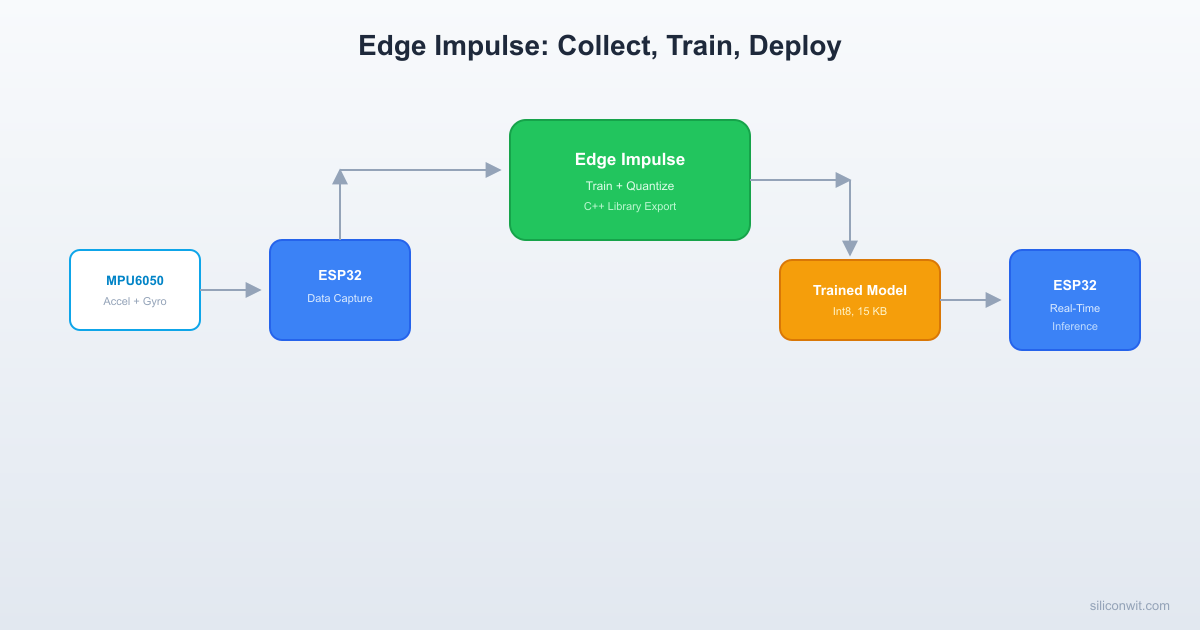
// Real-time motion classification using Edge Impulse on ESP32
#include "freertos/FreeRTOS.h"
#include "freertos/task.h"
#include "edge-impulse-sdk/classifier/ei_run_classifier.h"
#include "edge-impulse-sdk/dsp/numpy.hpp"
#define MPU6050_ADDR 0x68
#define LED_PIN GPIO_NUM_2
#define SAMPLE_RATE_HZ 50
static const char *TAG = "motion_cls";
static void i2c_init(void);
static void mpu6050_init(void);
static void read_accel(float *ax, float *ay, float *az);
// Buffer for one inference window
// EI_CLASSIFIER_DSP_INPUT_FRAME_SIZE = axes * window_samples = 3 * 100 = 300
static float features[EI_CLASSIFIER_DSP_INPUT_FRAME_SIZE];
// Callback that provides features to the classifier
static int get_feature_data(size_t offset, size_t length, float *out_ptr) {
memcpy(out_ptr, features + offset, length * sizeof(float));
static void led_init(void) {
gpio_set_direction(LED_PIN, GPIO_MODE_OUTPUT);
gpio_set_level(LED_PIN, 0);
// LED blink patterns for each class
static void indicate_class(const char *label) {
if (strcmp(label, "idle") == 0) {
gpio_set_level(LED_PIN, 0); // LED off
} else if (strcmp(label, "walking") == 0) {
gpio_set_level(LED_PIN, state);
} else if (strcmp(label, "running") == 0) {
// Fast blink (always toggle)
gpio_set_level(LED_PIN, state2);
extern "C" void app_main(void) {
ESP_LOGI(TAG, "Motion classifier starting");
ESP_LOGI(TAG, "Window size: %d ms, Features: %d, Labels: %d",
EI_CLASSIFIER_INTERVAL_MS * EI_CLASSIFIER_RAW_SAMPLE_COUNT,
EI_CLASSIFIER_DSP_INPUT_FRAME_SIZE,
EI_CLASSIFIER_LABEL_COUNT);
int interval_ms = 1000 / SAMPLE_RATE_HZ;
int window_samples = EI_CLASSIFIER_RAW_SAMPLE_COUNT; // 100 for 2s at 50 Hz
// Collect one window of accelerometer data
for (int i = 0; i < window_samples; i++) {
read_accel(&ax, &ay, &az);
features[i * 3 + 0] = ax;
features[i * 3 + 1] = ay;
features[i * 3 + 2] = az;
vTaskDelay(pdMS_TO_TICKS(interval_ms));
signal.total_length = EI_CLASSIFIER_DSP_INPUT_FRAME_SIZE;
signal.get_data = &get_feature_data;
ei_impulse_result_t result = {0};
EI_IMPULSE_ERROR err = run_classifier(&signal, &result, false);
if (err != EI_IMPULSE_OK) {
ESP_LOGE(TAG, "Classifier error: %d", err);
// Find the class with highest confidence
const char *max_label = "unknown";
for (size_t ix = 0; ix < EI_CLASSIFIER_LABEL_COUNT; ix++) {
ESP_LOGI(TAG, " %s: %.4f",
result.classification[ix].label,
result.classification[ix].value);
if (result.classification[ix].value > max_val) {
max_val = result.classification[ix].value;
max_label = result.classification[ix].label;
ESP_LOGI(TAG, "=> %s (%.1f%%) | DSP: %d ms, Classification: %d ms",
max_label, max_val * 100.0f,
result.timing.dsp, result.timing.classification);
indicate_class(max_label);
// I2C and MPU6050 driver functions
static void i2c_init(void) {
.sda_io_num = I2C_SDA_PIN,
.scl_io_num = I2C_SCL_PIN,
.sda_pullup_en = GPIO_PULLUP_ENABLE,
.scl_pullup_en = GPIO_PULLUP_ENABLE,
.master = { .clk_speed = 400000 },
i2c_param_config(I2C_NUM_0, &conf);
i2c_driver_install(I2C_NUM_0, conf.mode, 0, 0, 0);
static void mpu6050_init(void) {
buf[0] = 0x6B; buf[1] = 0x00;
i2c_master_write_to_device(I2C_NUM_0, MPU6050_ADDR, buf, 2, pdMS_TO_TICKS(100));
vTaskDelay(pdMS_TO_TICKS(100));
buf[0] = 0x1C; buf[1] = 0x00;
i2c_master_write_to_device(I2C_NUM_0, MPU6050_ADDR, buf, 2, pdMS_TO_TICKS(100));
static void read_accel(float *ax, float *ay, float *az) {
i2c_master_write_read_device(I2C_NUM_0, MPU6050_ADDR,
®, 1, data, 6, pdMS_TO_TICKS(100));
int16_t raw_x = (int16_t)((data[0] << 8) | data[1]);
int16_t raw_y = (int16_t)((data[2] << 8) | data[3]);
int16_t raw_z = (int16_t)((data[4] << 8) | data[5]);




Comments