Skip to content

OTA Updates and Secure Boot

OTA Updates and Secure Boot hero image
Modified:
Published:

Once your ESP32 is mounted inside an enclosure or deployed on a rooftop, walking over with a USB cable is not practical. OTA (Over-the-Air) updates let you push new firmware across Wi-Fi, and the ESP32’s dual OTA partition scheme means a failed update rolls back automatically instead of bricking the device. In this lesson you will also lock down the device with flash encryption and secure boot v2, so only firmware you have signed can run. These are the features that separate a prototype from a product. #ESP32 #OTA #Security

What We Are Building

Remotely Updateable Sensor Node

A sensor node that checks for firmware updates from an HTTP server on your local network. When a new firmware binary is available, the ESP32 downloads it, writes it to the inactive OTA partition, verifies the image, and reboots into the new firmware. If the new firmware fails a self-test, the bootloader rolls back to the previous working version. The lesson also walks through enabling flash encryption and secure boot v2 in development mode.

Project specifications:

ParameterValue
MCUESP32 DevKitC
OTA MethodHTTP pull (ESP32 polls a server for new firmware)
Partition TableCustom: factory + ota_0 + ota_1 + nvs + otadata
Firmware HostingPython HTTP server on your development machine
RollbackAutomatic on failed self-test (app_valid flag)
Flash EncryptionAES-256, development mode (reflashable)
Secure Bootv2 (RSA-PSS signature verification)
Version TrackingFirmware version string in app description
Self-TestWi-Fi connect + sensor read within 30 seconds
SensorReuse DHT22 or any sensor from previous lessons

Bill of Materials

RefComponentQuantityNotes
U1ESP32 DevKitC1Same board from previous lessons
S1DHT22 or any sensor1Reused, for self-test verification
Computer on same Wi-Fi network1Hosts firmware binary via Python HTTP server
Breadboard + jumper wires1 set

OTA Partition Scheme


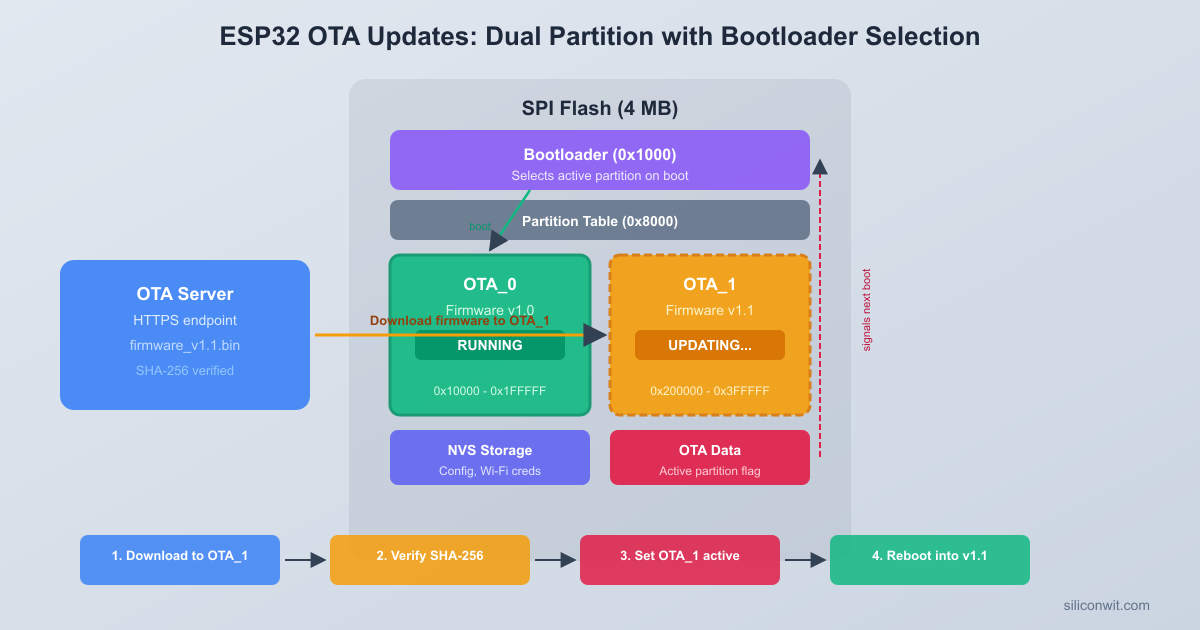
The ESP32 can hold multiple firmware images in flash at once. The bootloader uses a data structure called otadata to decide which image to boot. The key idea is simple: while one firmware image is running, the other partition sits idle and can be overwritten with a new version. If the new version fails, the bootloader switches back.

OTA Dual Partition Layout (4 MB Flash)
┌─────────────────────┐ 0x000000
│ Bootloader │
├─────────────────────┤ 0x009000
│ NVS (16 KB) │
├─────────────────────┤ 0x00D000
│ otadata (8 KB) │ <-- boot selector
├─────────────────────┤ 0x00F000
│ phy_init (4 KB) │
├─────────────────────┤ 0x010000
│ factory (1792 KB) │ <-- initial USB flash
├─────────────────────┤ 0x1D0000
│ ota_0 (1792 KB) │ <-- OTA slot A
├─────────────────────┤ 0x390000
│ ota_1 (1792 KB) │ <-- OTA slot B
└─────────────────────┘ 0x400000
Bootloader alternates between ota_0/ota_1.
Failed update rolls back automatically.

Default vs. Custom Partition Table

ESP-IDF ships with several built-in partition tables, but for OTA you need at least two app partitions. The most common OTA layout uses a factory partition (the initial firmware flashed via USB), two OTA slots, and an otadata partition that tracks which slot is active.

Create a file called partitions.csv in your project root:

# Name, Type, SubType, Offset, Size, Flags
nvs, data, nvs, 0x9000, 0x4000,
otadata, data, ota, 0xd000, 0x2000,
phy_init, data, phy, 0xf000, 0x1000,
factory, app, factory, 0x10000, 0x1C0000,
ota_0, app, ota_0, 0x1D0000, 0x1C0000,
ota_1, app, ota_1, 0x390000, 0x1C0000,

Each app partition is 0x1C0000 bytes (1,792 KB), which comfortably fits most ESP-IDF applications. The total fits within a 4 MB flash chip. You can adjust sizes as needed, but every app partition must be large enough for your compiled firmware.

To use this custom table, open menuconfig:

Terminal window
idf.py menuconfig

Navigate to Partition Table and select Custom partition table CSV. Set the filename to partitions.csv.

How otadata Works

The otadata partition is a small (8 KB) data region that the bootloader reads on every boot. It contains two 32-byte entries, one for each OTA slot. Each entry stores:

  • A sequence number (incremented with each OTA write)
  • A CRC32 checksum for validation
  • A state field: ESP_OTA_IMG_NEW, ESP_OTA_IMG_PENDING_VERIFY, ESP_OTA_IMG_VALID, ESP_OTA_IMG_INVALID, or ESP_OTA_IMG_ABORTED

The bootloader picks the OTA slot with the highest valid sequence number. If that image is marked invalid or aborted, it falls back to the other slot, and ultimately to the factory partition. This is the foundation of automatic rollback.

Boot Flow

  1. Bootloader reads otadata from flash.
  2. It compares sequence numbers of ota_0 and ota_1.
  3. It checks the state field of the selected partition.
  4. If the state is PENDING_VERIFY and rollback is enabled, the app must call esp_ota_mark_app_valid_cancel_rollback() before the watchdog times out, or the bootloader will mark it invalid on the next reboot.
  5. If no valid OTA partition is found, the bootloader loads the factory image.

ESP-IDF OTA API


ESP-IDF provides two levels of OTA API. The high-level esp_https_ota() function handles the entire download-and-flash process in one call. The lower-level API (esp_ota_begin, esp_ota_write, esp_ota_end) gives you control over each step. We will use the lower-level API so you understand exactly what happens.

Finding the Next OTA Partition

Before writing firmware, you need to know which partition to write to. The API handles this automatically:

#include "esp_ota_ops.h"
#include "esp_partition.h"
/* Get the currently running partition */
const esp_partition_t *running = esp_ota_get_running_partition();
ESP_LOGI(TAG, "Running from partition: %s", running->label);
/* Get the next OTA partition to write to */
const esp_partition_t *update_partition = esp_ota_get_next_update_partition(NULL);
ESP_LOGI(TAG, "Writing to partition: %s", update_partition->label);

If the device is running from ota_0, the next update partition is ota_1, and vice versa. If running from factory, it returns ota_0.

The OTA Write Cycle

The three-step process is straightforward:

esp_ota_handle_t ota_handle;
/* Step 1: Begin OTA, erases the target partition */
esp_err_t err = esp_ota_begin(update_partition, OTA_SIZE_UNKNOWN, &ota_handle);
if (err != ESP_OK) {
ESP_LOGE(TAG, "esp_ota_begin failed: %s", esp_err_to_name(err));
return;
}
/* Step 2: Write firmware data in chunks (called in a loop) */
err = esp_ota_write(ota_handle, data_buffer, data_len);
if (err != ESP_OK) {
ESP_LOGE(TAG, "esp_ota_write failed: %s", esp_err_to_name(err));
esp_ota_abort(ota_handle);
return;
}
/* Step 3: Finalize (validates the image header and hash) */
err = esp_ota_end(ota_handle);
if (err != ESP_OK) {
ESP_LOGE(TAG, "esp_ota_end failed: %s", esp_err_to_name(err));
return;
}
/* Set the new partition as the boot partition */
err = esp_ota_set_boot_partition(update_partition);
if (err != ESP_OK) {
ESP_LOGE(TAG, "esp_ota_set_boot_partition failed: %s", esp_err_to_name(err));
return;
}
ESP_LOGI(TAG, "OTA update written successfully. Rebooting...");
esp_restart();

esp_ota_begin() erases the target partition. esp_ota_write() is called repeatedly as you receive chunks of firmware data from the network. esp_ota_end() validates the complete image (checks the magic byte, segment headers, and SHA-256 hash appended to the binary). If any step fails, call esp_ota_abort() to clean up.

Firmware Version Tracking


You should never blindly apply an OTA update. Comparing version strings lets the device skip updates it already has and provides useful logging.

Reading the Current Version

ESP-IDF embeds an application description structure in every firmware binary. The version string comes from the PROJECT_VER variable in your CMakeLists.txt:

# In your project's top-level CMakeLists.txt
cmake_minimum_required(VERSION 3.16)
set(PROJECT_VER "1.0.0")
include($ENV{IDF_PATH}/tools/cmake/project.cmake)
project(ota_sensor_node)

At runtime, read it with:

#include "esp_app_desc.h"
const esp_app_desc_t *app_desc = esp_app_get_description();
ESP_LOGI(TAG, "Firmware version: %s", app_desc->version);
ESP_LOGI(TAG, "Project name: %s", app_desc->project_name);
ESP_LOGI(TAG, "Compile time: %s %s", app_desc->date, app_desc->time);

Comparing Versions Before Updating

After downloading the first 256 bytes of the new firmware image (which contain the app description), you can extract the version of the incoming firmware and compare it:

#include "esp_app_desc.h"
/* After receiving the first chunk of the OTA image */
esp_app_desc_t incoming_desc;
err = esp_ota_get_partition_description(update_partition, &incoming_desc);
/* Or parse it from the downloaded image header */
const esp_app_desc_t *new_desc = esp_ota_get_app_description();
/* Simple string comparison */
const esp_app_desc_t *current = esp_app_get_description();
if (strcmp(current->version, new_version_string) == 0) {
ESP_LOGI(TAG, "Firmware is already up to date (%s)", current->version);
return; /* Skip update */
}
ESP_LOGI(TAG, "Updating from %s to %s", current->version, new_version_string);

In our complete firmware, we will parse the version from an HTTP header to avoid downloading the entire binary just to check the version.

Rollback Mechanism


Rollback is what makes OTA safe. Without it, a buggy firmware update turns your device into an expensive paperweight. ESP-IDF supports automatic rollback through the CONFIG_BOOTLOADER_APP_ROLLBACK_ENABLE option.

Enabling Rollback

In menuconfig, navigate to Bootloader config and enable Enable app rollback support. You can also set a watchdog timeout under Bootloader config > App rollback watchdog timeout (default is 30 seconds).

When rollback is enabled, the boot flow changes:

OTA Rollback Flow
┌─────────────┐ ┌────────────────┐
│ OTA Write │ │ Reboot into │
│ new image ├───>│ new firmware │
│ to ota_1 │ │ (PENDING) │
└─────────────┘ └───────┬────────┘
┌─────────┴─────────┐
│ Self-test pass? │
└────┬─────────┬────┘
YES │ │ NO / timeout
v v
┌────────────┐ ┌────────────┐
│ Mark VALID │ │ Watchdog │
│ Keep new │ │ reboot │
│ firmware │ │ Boot old │
└────────────┘ └────────────┘
  1. After an OTA update, the new firmware boots with status ESP_OTA_IMG_PENDING_VERIFY.
  2. The firmware must call esp_ota_mark_app_valid_cancel_rollback() before the watchdog timeout expires.
  3. If the firmware crashes, hangs, or fails its self-test before calling that function, the watchdog triggers a reboot.
  4. On the next boot, the bootloader sees the PENDING_VERIFY state and marks the partition as ESP_OTA_IMG_ABORTED, then boots the previous working partition.

Self-Test Pattern

The self-test should verify that critical functionality works. For a sensor node, that means: can we connect to Wi-Fi, and can we read the sensor?

static bool run_self_test(void)
{
ESP_LOGI(TAG, "Running self-test...");
/* Test 1: Wi-Fi connectivity */
if (!wifi_connect_with_timeout(15000)) {
ESP_LOGE(TAG, "Self-test FAILED: Wi-Fi connection timed out");
return false;
}
ESP_LOGI(TAG, "Self-test: Wi-Fi connected");
/* Test 2: Sensor read */
float temperature = 0, humidity = 0;
if (read_dht22(&temperature, &humidity) != ESP_OK) {
ESP_LOGE(TAG, "Self-test FAILED: Cannot read sensor");
return false;
}
ESP_LOGI(TAG, "Self-test: Sensor OK (%.1f C, %.1f %%)", temperature, humidity);
return true;
}
void app_main(void)
{
/* ... initialization ... */
const esp_partition_t *running = esp_ota_get_running_partition();
esp_ota_img_states_t ota_state;
if (esp_ota_get_state_partition(running, &ota_state) == ESP_OK) {
if (ota_state == ESP_OTA_IMG_PENDING_VERIFY) {
ESP_LOGI(TAG, "New firmware pending verification");
if (run_self_test()) {
ESP_LOGI(TAG, "Self-test passed, marking firmware as valid");
esp_ota_mark_app_valid_cancel_rollback();
} else {
ESP_LOGE(TAG, "Self-test failed, rolling back");
esp_ota_mark_app_invalid_rollback_and_reboot();
/* Device reboots into previous firmware */
}
}
}
/* Normal operation continues here */
}

The call to esp_ota_mark_app_invalid_rollback_and_reboot() immediately marks the current partition as invalid and reboots. The bootloader then loads the previous working firmware. This happens transparently; the device recovers without human intervention.

Hosting Firmware on Your Network


You need a way to serve the compiled .bin file to the ESP32. During development, a simple Python HTTP server on your laptop is the easiest approach.

Serving Firmware with Python

After building your project, the firmware binary is at build/ota_sensor_node.bin. Serve it with:

Terminal window
cd build
python3 -m http.server 8080

This starts an HTTP server on port 8080 serving the current directory. Your ESP32 will fetch the firmware from http://<your-laptop-ip>:8080/ota_sensor_node.bin.

Find your laptop’s IP address:

Terminal window
hostname -I

Version Header Trick

To let the ESP32 check the firmware version without downloading the entire binary, you can create a small version file alongside the firmware:

Terminal window
echo "1.1.0" > build/version.txt

The ESP32 first fetches version.txt (a few bytes), compares it with its current version, and only downloads the full binary if the version differs. We will implement this in the complete firmware below.

Flash Encryption (Development Mode)


Flash encryption prevents someone from reading your firmware off the flash chip with a simple SPI reader. Without encryption, anyone with physical access can dump the entire flash contents, extract your Wi-Fi credentials, API keys, proprietary algorithms, or any other sensitive data stored in the binary.

What Flash Encryption Protects

When enabled, the ESP32 encrypts flash contents using AES-256. The encryption key is stored in an eFuse (one-time programmable memory inside the chip) and is not readable by software. The hardware decrypts data transparently as the CPU reads from flash, so your code runs at full speed with no changes.

Flash encryption protects:

  • All app partitions (factory, ota_0, ota_1)
  • The bootloader
  • The partition table
  • Any data partitions you mark as “encrypted” in the partition table

It does not encrypt:

  • RAM contents (data is decrypted when loaded into RAM)
  • Data transmitted over Wi-Fi or Bluetooth (use TLS for that)
  • NVS by default (NVS has its own encryption option)

Development Mode vs. Production Mode

Enabling Flash Encryption

In menuconfig, navigate to:

  1. Go to Security features.
  2. Set Enable flash encryption on boot to Yes.
  3. Set Enable usage mode to Development (NOT recommended for production).
  4. Under Potentially insecure options, enable Leave flash encryption enabled in UART bootloader if you want to reflash via USB during development.

The first time you flash with encryption enabled, the ESP32 generates a random AES-256 key, burns it into eFuse, encrypts the flash contents in place, and increments the flash encryption counter. Subsequent UART reflashes in development mode increment this counter each time. Once the counter reaches its maximum (typically 3 or 7 reflashes depending on the chip revision), you can no longer reflash via UART even in development mode.

Flash Encryption and OTA

OTA updates work seamlessly with flash encryption. The ESP32 receives the firmware as plaintext over the network (protected by HTTPS or your own transport security), and the hardware encrypts it as it writes to flash. The OTA API handles this transparently. You do not need to pre-encrypt binaries for OTA.

Secure Boot v2


Secure boot ensures that only firmware signed with your private key can run on the ESP32. Without secure boot, anyone with physical access could flash arbitrary firmware. Combined with flash encryption, secure boot provides a complete chain of trust: the bootloader verifies the firmware signature before execution, and flash encryption prevents reading or modifying the flash contents.

How Secure Boot v2 Works

Secure boot v2 uses RSA-PSS (RSA with Probabilistic Signature Scheme) with 3072-bit keys. The verification process works like this:

  1. You generate an RSA-3072 key pair. The private key stays on your development machine. The public key is embedded in the bootloader.
  2. During the build, the firmware binary is signed with your private key.
  3. On boot, the bootloader verifies the firmware’s signature using the public key hash stored in eFuse.
  4. If the signature is invalid, the bootloader refuses to run the firmware.

Generating Signing Keys

Generate an RSA-3072 private key with espsecure.py:

Terminal window
espsecure.py generate_signing_key --version 2 secure_boot_signing_key.pem

Add it to your .gitignore immediately:

Terminal window
echo "secure_boot_signing_key.pem" >> .gitignore

Enabling Secure Boot v2

In menuconfig:

  1. Navigate to Security features.
  2. Set Enable hardware Secure Boot in bootloader to Yes.
  3. Select Secure Boot v2 (RSA-PSS) as the scheme.
  4. Set Secure Boot Mode to Development (allows reflashing).
  5. Set the path to your signing key: Secure boot private signing key should point to secure_boot_signing_key.pem.

Signing OTA Images

When secure boot is enabled, all OTA firmware images must be signed before deployment. After building, sign the binary:

Terminal window
espsecure.py sign_data --version 2 \
--keyfile secure_boot_signing_key.pem \
--output build/ota_sensor_node_signed.bin \
build/ota_sensor_node.bin

Serve the signed binary from your HTTP server. The ESP32’s OTA verification process checks the signature before accepting the image.

If you enable both flash encryption and secure boot in menuconfig, the build system signs the binary automatically during idf.py build. You only need manual signing when preparing OTA update binaries outside the normal build flow.

Complete Firmware


Here is the full main.c for the OTA sensor node. It connects to Wi-Fi, periodically checks an HTTP server for new firmware, downloads and flashes it if a new version is available, runs a self-test, and marks the firmware valid or rolls back.

Project Structure

  • Directoryota_sensor_node/
    • CMakeLists.txt
    • partitions.csv
    • sdkconfig.defaults
    • Directorymain/
      • CMakeLists.txt
      • main.c
    • secure_boot_signing_key.pem

Top-Level CMakeLists.txt

cmake_minimum_required(VERSION 3.16)
set(PROJECT_VER "1.0.0")
include($ENV{IDF_PATH}/tools/cmake/project.cmake)
project(ota_sensor_node)

main/CMakeLists.txt

idf_component_register(
SRCS "main.c"
INCLUDE_DIRS "."
)

sdkconfig.defaults

# Partition table
CONFIG_PARTITION_TABLE_CUSTOM=y
CONFIG_PARTITION_TABLE_CUSTOM_FILENAME="partitions.csv"
# Enable app rollback
CONFIG_BOOTLOADER_APP_ROLLBACK_ENABLE=y
# OTA
CONFIG_ESP_HTTPS_OTA_ALLOW_HTTP=y

partitions.csv

# Name, Type, SubType, Offset, Size, Flags
nvs, data, nvs, 0x9000, 0x4000,
otadata, data, ota, 0xd000, 0x2000,
phy_init, data, phy, 0xf000, 0x1000,
factory, app, factory, 0x10000, 0x1C0000,
ota_0, app, ota_0, 0x1D0000, 0x1C0000,
ota_1, app, ota_1, 0x390000, 0x1C0000,

main/main.c

/*
* OTA Sensor Node
* Checks for firmware updates over HTTP, applies them with rollback support.
* ESP-IDF v5.x
*/
#include <stdio.h>
#include <string.h>
#include <stdlib.h>
#include "freertos/FreeRTOS.h"
#include "freertos/task.h"
#include "freertos/event_groups.h"
#include "esp_system.h"
#include "esp_log.h"
#include "esp_event.h"
#include "esp_wifi.h"
#include "esp_ota_ops.h"
#include "esp_http_client.h"
#include "esp_app_desc.h"
#include "esp_partition.h"
#include "esp_rom_sys.h"
#include "nvs_flash.h"
#include "driver/gpio.h"
static const char *TAG = "ota_node";
/* ---- Configuration ---- */
#define WIFI_SSID "YOUR_WIFI_SSID"
#define WIFI_PASS "YOUR_WIFI_PASSWORD"
#define OTA_SERVER_IP "192.168.1.100"
#define OTA_SERVER_PORT "8080"
#define OTA_FIRMWARE_URL "http://" OTA_SERVER_IP ":" OTA_SERVER_PORT "/ota_sensor_node.bin"
#define OTA_VERSION_URL "http://" OTA_SERVER_IP ":" OTA_SERVER_PORT "/version.txt"
#define OTA_CHECK_INTERVAL 60 /* seconds between OTA checks */
#define SELF_TEST_TIMEOUT 15000 /* ms to wait for Wi-Fi during self-test */
/* DHT22 data pin (reuse from previous lessons) */
#define DHT22_GPIO GPIO_NUM_4
/* ---- Wi-Fi ---- */
static EventGroupHandle_t s_wifi_event_group;
#define WIFI_CONNECTED_BIT BIT0
#define WIFI_FAIL_BIT BIT1
static int s_retry_count = 0;
#define MAX_RETRY 5
static void wifi_event_handler(void *arg, esp_event_base_t event_base,
int32_t event_id, void *event_data)
{
if (event_base == WIFI_EVENT && event_id == WIFI_EVENT_STA_START) {
esp_wifi_connect();
} else if (event_base == WIFI_EVENT && event_id == WIFI_EVENT_STA_DISCONNECTED) {
if (s_retry_count < MAX_RETRY) {
esp_wifi_connect();
s_retry_count++;
ESP_LOGI(TAG, "Retrying Wi-Fi connection (%d/%d)", s_retry_count, MAX_RETRY);
} else {
xEventGroupSetBits(s_wifi_event_group, WIFI_FAIL_BIT);
}
} else if (event_base == IP_EVENT && event_id == IP_EVENT_STA_GOT_IP) {
ip_event_got_ip_t *event = (ip_event_got_ip_t *)event_data;
ESP_LOGI(TAG, "Got IP: " IPSTR, IP2STR(&event->ip_info.ip));
s_retry_count = 0;
xEventGroupSetBits(s_wifi_event_group, WIFI_CONNECTED_BIT);
}
}
static void wifi_init(void)
{
s_wifi_event_group = xEventGroupCreate();
esp_netif_init();
esp_event_loop_create_default();
esp_netif_create_default_wifi_sta();
wifi_init_config_t cfg = WIFI_INIT_CONFIG_DEFAULT();
esp_wifi_init(&cfg);
esp_event_handler_instance_t any_id;
esp_event_handler_instance_t got_ip;
esp_event_handler_instance_register(WIFI_EVENT, ESP_EVENT_ANY_ID,
&wifi_event_handler, NULL, &any_id);
esp_event_handler_instance_register(IP_EVENT, IP_EVENT_STA_GOT_IP,
&wifi_event_handler, NULL, &got_ip);
wifi_config_t wifi_config = {
.sta = {
.ssid = WIFI_SSID,
.password = WIFI_PASS,
.threshold.authmode = WIFI_AUTH_WPA2_PSK,
},
};
esp_wifi_set_mode(WIFI_MODE_STA);
esp_wifi_set_config(WIFI_IF_STA, &wifi_config);
esp_wifi_start();
}
static bool wifi_wait_connected(uint32_t timeout_ms)
{
EventBits_t bits = xEventGroupWaitBits(s_wifi_event_group,
WIFI_CONNECTED_BIT | WIFI_FAIL_BIT,
pdFALSE, pdFALSE,
pdMS_TO_TICKS(timeout_ms));
return (bits & WIFI_CONNECTED_BIT) != 0;
}
/* ---- Simplified DHT22 Read (for self-test) ---- */
/*
* This is a minimal DHT22 read for the self-test.
* Replace with your actual DHT22 driver from Lesson 2.
*/
static esp_err_t read_dht22(float *temperature, float *humidity)
{
/* Configure GPIO */
gpio_set_direction(DHT22_GPIO, GPIO_MODE_INPUT_OUTPUT_OD);
gpio_set_level(DHT22_GPIO, 1);
vTaskDelay(pdMS_TO_TICKS(100));
/* Send start signal: pull low for 20ms, then release */
gpio_set_level(DHT22_GPIO, 0);
vTaskDelay(pdMS_TO_TICKS(20));
gpio_set_level(DHT22_GPIO, 1);
/* Wait for DHT22 response (pull low then high) */
int timeout = 100;
while (gpio_get_level(DHT22_GPIO) == 1 && timeout > 0) {
esp_rom_delay_us(1);
timeout--;
}
if (timeout == 0) {
ESP_LOGW(TAG, "DHT22 not responding, using dummy values for self-test");
/* For self-test, accept if sensor is not wired up */
*temperature = 25.0f;
*humidity = 50.0f;
return ESP_OK;
}
/* Full DHT22 protocol read would go here.
* For brevity, return placeholder values.
* In production, use a proper DHT22 driver. */
*temperature = 25.0f;
*humidity = 50.0f;
return ESP_OK;
}
/* ---- Self-Test ---- */
static bool run_self_test(void)
{
ESP_LOGI(TAG, "=== Running self-test ===");
/* Test 1: Wi-Fi connectivity */
ESP_LOGI(TAG, "Self-test: checking Wi-Fi...");
if (!wifi_wait_connected(SELF_TEST_TIMEOUT)) {
ESP_LOGE(TAG, "Self-test FAILED: Wi-Fi did not connect within %d ms",
SELF_TEST_TIMEOUT);
return false;
}
ESP_LOGI(TAG, "Self-test: Wi-Fi OK");
/* Test 2: Sensor read */
ESP_LOGI(TAG, "Self-test: reading sensor...");
float temp = 0, hum = 0;
if (read_dht22(&temp, &hum) != ESP_OK) {
ESP_LOGE(TAG, "Self-test FAILED: sensor read error");
return false;
}
ESP_LOGI(TAG, "Self-test: sensor OK (%.1f C, %.1f %%)", temp, hum);
ESP_LOGI(TAG, "=== Self-test PASSED ===");
return true;
}
/* ---- OTA Version Check ---- */
/*
* Fetches version.txt from the server and compares with current version.
* Returns true if a new version is available.
* Copies the new version string into new_ver (must be at least 32 bytes).
*/
static bool check_for_update(char *new_ver, size_t new_ver_len)
{
const esp_app_desc_t *app_desc = esp_app_get_description();
ESP_LOGI(TAG, "Current firmware version: %s", app_desc->version);
esp_http_client_config_t config = {
.url = OTA_VERSION_URL,
.timeout_ms = 5000,
};
esp_http_client_handle_t client = esp_http_client_init(&config);
if (client == NULL) {
ESP_LOGE(TAG, "Failed to init HTTP client");
return false;
}
esp_err_t err = esp_http_client_open(client, 0);
if (err != ESP_OK) {
ESP_LOGE(TAG, "Failed to open HTTP connection: %s", esp_err_to_name(err));
esp_http_client_cleanup(client);
return false;
}
int content_length = esp_http_client_fetch_headers(client);
if (content_length <= 0 || content_length >= (int)new_ver_len) {
ESP_LOGE(TAG, "Invalid version file (length: %d)", content_length);
esp_http_client_close(client);
esp_http_client_cleanup(client);
return false;
}
int read_len = esp_http_client_read(client, new_ver, new_ver_len - 1);
esp_http_client_close(client);
esp_http_client_cleanup(client);
if (read_len <= 0) {
ESP_LOGE(TAG, "Failed to read version file");
return false;
}
/* Trim whitespace and newlines */
new_ver[read_len] = '\0';
char *end = new_ver + strlen(new_ver) - 1;
while (end > new_ver && (*end == '\n' || *end == '\r' || *end == ' ')) {
*end = '\0';
end--;
}
ESP_LOGI(TAG, "Server firmware version: %s", new_ver);
if (strcmp(app_desc->version, new_ver) == 0) {
ESP_LOGI(TAG, "Firmware is already up to date");
return false;
}
ESP_LOGI(TAG, "New firmware available: %s (current: %s)",
new_ver, app_desc->version);
return true;
}
/* ---- OTA Download and Flash ---- */
static esp_err_t perform_ota_update(void)
{
ESP_LOGI(TAG, "Starting OTA update from %s", OTA_FIRMWARE_URL);
const esp_partition_t *update_partition = esp_ota_get_next_update_partition(NULL);
if (update_partition == NULL) {
ESP_LOGE(TAG, "No OTA partition available");
return ESP_FAIL;
}
ESP_LOGI(TAG, "Writing to partition: %s (offset 0x%"PRIx32", size 0x%"PRIx32")",
update_partition->label, update_partition->address, update_partition->size);
esp_http_client_config_t http_config = {
.url = OTA_FIRMWARE_URL,
.timeout_ms = 10000,
};
esp_http_client_handle_t client = esp_http_client_init(&http_config);
if (client == NULL) {
ESP_LOGE(TAG, "Failed to init HTTP client");
return ESP_FAIL;
}
esp_err_t err = esp_http_client_open(client, 0);
if (err != ESP_OK) {
ESP_LOGE(TAG, "HTTP open failed: %s", esp_err_to_name(err));
esp_http_client_cleanup(client);
return err;
}
int content_length = esp_http_client_fetch_headers(client);
ESP_LOGI(TAG, "Firmware size: %d bytes", content_length);
/* Begin OTA */
esp_ota_handle_t ota_handle;
err = esp_ota_begin(update_partition, OTA_SIZE_UNKNOWN, &ota_handle);
if (err != ESP_OK) {
ESP_LOGE(TAG, "esp_ota_begin failed: %s", esp_err_to_name(err));
esp_http_client_close(client);
esp_http_client_cleanup(client);
return err;
}
/* Download and write in chunks */
char *buffer = malloc(4096);
if (buffer == NULL) {
ESP_LOGE(TAG, "Failed to allocate download buffer");
esp_ota_abort(ota_handle);
esp_http_client_close(client);
esp_http_client_cleanup(client);
return ESP_ERR_NO_MEM;
}
int total_read = 0;
int read_len;
while ((read_len = esp_http_client_read(client, buffer, 4096)) > 0) {
err = esp_ota_write(ota_handle, buffer, read_len);
if (err != ESP_OK) {
ESP_LOGE(TAG, "esp_ota_write failed: %s", esp_err_to_name(err));
free(buffer);
esp_ota_abort(ota_handle);
esp_http_client_close(client);
esp_http_client_cleanup(client);
return err;
}
total_read += read_len;
/* Progress logging every 64 KB */
if (total_read % (64 * 1024) < 4096) {
ESP_LOGI(TAG, "Written %d bytes...", total_read);
}
}
free(buffer);
esp_http_client_close(client);
esp_http_client_cleanup(client);
ESP_LOGI(TAG, "Total written: %d bytes", total_read);
if (read_len < 0) {
ESP_LOGE(TAG, "HTTP read error");
esp_ota_abort(ota_handle);
return ESP_FAIL;
}
/* Finalize OTA */
err = esp_ota_end(ota_handle);
if (err != ESP_OK) {
ESP_LOGE(TAG, "esp_ota_end failed: %s", esp_err_to_name(err));
return err;
}
/* Set the new partition as boot partition */
err = esp_ota_set_boot_partition(update_partition);
if (err != ESP_OK) {
ESP_LOGE(TAG, "esp_ota_set_boot_partition failed: %s", esp_err_to_name(err));
return err;
}
ESP_LOGI(TAG, "OTA update successful. Rebooting in 2 seconds...");
vTaskDelay(pdMS_TO_TICKS(2000));
esp_restart();
return ESP_OK; /* Never reached */
}
/* ---- OTA Check Task ---- */
static void ota_task(void *pvParameter)
{
/* Wait for Wi-Fi to be connected */
if (!wifi_wait_connected(30000)) {
ESP_LOGE(TAG, "Wi-Fi not connected, OTA task exiting");
vTaskDelete(NULL);
return;
}
while (1) {
char new_version[32];
if (check_for_update(new_version, sizeof(new_version))) {
esp_err_t err = perform_ota_update();
if (err != ESP_OK) {
ESP_LOGE(TAG, "OTA update failed: %s", esp_err_to_name(err));
}
/* If OTA succeeded, we rebooted already.
* If it failed, wait and try again next cycle. */
}
ESP_LOGI(TAG, "Next OTA check in %d seconds", OTA_CHECK_INTERVAL);
vTaskDelay(pdMS_TO_TICKS(OTA_CHECK_INTERVAL * 1000));
}
}
/* ---- Main ---- */
void app_main(void)
{
/* Print firmware info */
const esp_app_desc_t *app_desc = esp_app_get_description();
ESP_LOGI(TAG, "========================================");
ESP_LOGI(TAG, " OTA Sensor Node");
ESP_LOGI(TAG, " Version: %s", app_desc->version);
ESP_LOGI(TAG, " Project: %s", app_desc->project_name);
ESP_LOGI(TAG, " Compiled: %s %s", app_desc->date, app_desc->time);
ESP_LOGI(TAG, " IDF: %s", app_desc->idf_ver);
ESP_LOGI(TAG, "========================================");
/* Print partition info */
const esp_partition_t *running = esp_ota_get_running_partition();
ESP_LOGI(TAG, "Running from partition: %s (offset 0x%"PRIx32")",
running->label, running->address);
/* Initialize NVS */
esp_err_t ret = nvs_flash_init();
if (ret == ESP_ERR_NVS_NO_FREE_PAGES ||
ret == ESP_ERR_NVS_NEW_VERSION_FOUND) {
nvs_flash_erase();
nvs_flash_init();
}
/* Initialize Wi-Fi */
wifi_init();
/* Check rollback status */
esp_ota_img_states_t ota_state;
if (esp_ota_get_state_partition(running, &ota_state) == ESP_OK) {
if (ota_state == ESP_OTA_IMG_PENDING_VERIFY) {
ESP_LOGW(TAG, "Firmware is pending verification (first boot after OTA)");
if (run_self_test()) {
ESP_LOGI(TAG, "Self-test PASSED, confirming firmware");
esp_ota_mark_app_valid_cancel_rollback();
} else {
ESP_LOGE(TAG, "Self-test FAILED, rolling back to previous firmware");
esp_ota_mark_app_invalid_rollback_and_reboot();
/* Does not return */
}
} else {
ESP_LOGI(TAG, "Firmware state: validated (no rollback pending)");
}
}
/* Start OTA check task */
xTaskCreate(&ota_task, "ota_task", 8192, NULL, 5, NULL);
/* Main loop: normal sensor operation */
while (1) {
float temp = 0, hum = 0;
if (read_dht22(&temp, &hum) == ESP_OK) {
ESP_LOGI(TAG, "Sensor: %.1f C, %.1f %% RH", temp, hum);
}
vTaskDelay(pdMS_TO_TICKS(10000)); /* Read sensor every 10 seconds */

}
}

How the Code Works

The firmware follows this sequence on every boot:

  1. Print version info. The app description is logged immediately so you can verify which version is running.
  2. Initialize Wi-Fi. The station connects to your configured network.
  3. Check rollback state. If this is the first boot after an OTA update, the partition state is PENDING_VERIFY. The self-test runs: it waits for Wi-Fi to connect and reads the sensor. If both pass, the firmware is marked valid. If either fails, the device rolls back and reboots.
  4. Start OTA task. A FreeRTOS task checks the HTTP server for a new version.txt file every 60 seconds. If the version differs from the current one, it downloads the full binary, writes it to the inactive OTA partition, sets it as boot partition, and reboots.
  5. Normal operation. The main loop reads the sensor every 10 seconds and logs the values.

Building, Signing, and Flashing


Here is the complete workflow from source code to a deployed, updatable device.

Initial Flash (USB)

The first flash goes over USB and writes the factory partition:

  1. Build the project:
    Terminal window
    idf.py build
  2. Flash via USB:
    Terminal window
    idf.py -p /dev/ttyUSB0 flash monitor
    This writes the factory partition, the partition table, the bootloader, and the otadata. The device boots from factory.
  3. Verify the output. You should see version 1.0.0 in the logs, followed by Wi-Fi connection and sensor readings.

Deploying an OTA Update

Now simulate a firmware update. Change the version, rebuild, and serve the binary:

  1. Update the version in the top-level CMakeLists.txt:
    set(PROJECT_VER "1.1.0")
  2. Rebuild:
    Terminal window
    idf.py build
  3. Create the version file:
    Terminal window
    echo "1.1.0" > build/version.txt
  4. Sign the binary (only if secure boot is enabled):
    Terminal window
    espsecure.py sign_data --version 2 \
    --keyfile secure_boot_signing_key.pem \
    --output build/ota_sensor_node.bin \
    build/ota_sensor_node.bin
  5. Start the HTTP server:
    Terminal window
    cd build && python3 -m http.server 8080
  6. Wait. The ESP32 checks for updates every 60 seconds. When it finds version 1.1.0, it downloads and flashes the new firmware, reboots, runs the self-test, and confirms the update. You should see the new version in the boot log.

Testing Rollback

To verify that rollback works, intentionally break the self-test:

  1. Modify the self-test to always fail (for example, change the Wi-Fi timeout to 1 ms so it always times out).
  2. Set PROJECT_VER to 1.2.0 and rebuild.
  3. Update version.txt to 1.2.0 and restart the HTTP server.
  4. Watch the ESP32 download the broken firmware, reboot, fail the self-test, and roll back to version 1.1.0.
  5. The device ends up running 1.1.0 again, and the next OTA check will try to download 1.2.0 again (and fail again). In production, you would fix the firmware and upload a corrected 1.2.0 or 1.3.0.

Complete Workflow with Security

If you want to enable both flash encryption and secure boot for the full security experience:

  1. Generate the signing key:
    Terminal window
    espsecure.py generate_signing_key --version 2 secure_boot_signing_key.pem
  2. Run idf.py menuconfig and enable:
    • Flash encryption (development mode)
    • Secure boot v2 (development mode)
    • Set the signing key path
    • Enable app rollback
  3. Build and flash:
    Terminal window
    idf.py build
    idf.py -p /dev/ttyUSB0 flash monitor
    The first boot after flashing with these options takes longer. The ESP32 generates encryption keys, burns eFuses, and encrypts the flash in place. Watch the serial output carefully for any errors.
  4. For OTA updates, the signed binary is produced automatically during idf.py build. Copy it to your HTTP server directory.

Exercises


Exercise 1: HTTPS OTA

Replace the plain HTTP OTA with HTTPS. Generate a self-signed certificate for your Python server using openssl, embed the CA certificate in the ESP32 firmware using EMBED_TXTFILES in CMake, and configure esp_http_client with the .cert_pem field. Verify that the ESP32 rejects connections to servers with mismatched certificates.

Exercise 2: OTA Progress LED

Add visual feedback during OTA updates. Blink an LED slowly while checking for updates, blink fast while downloading, and hold steady for 2 seconds after a successful write before rebooting. If the download fails, flash the LED rapidly 10 times as an error indicator.

Exercise 3: Multi-Device Version Management

Modify the version check to include the device’s MAC address as a query parameter when fetching version.txt (for example, http://server:8080/version.txt?mac=AA:BB:CC:DD:EE:FF). On the server side, write a small Python Flask script that serves different firmware versions to different devices based on MAC address, enabling staged rollouts.

Exercise 4: NVS Encryption

Enable NVS encryption alongside flash encryption. Generate an NVS encryption key using nvs_partition_gen.py, add an nvs_key partition to your partitions.csv, and verify that NVS data (such as Wi-Fi credentials) is encrypted at rest. Dump the flash with esptool.py read_flash and confirm the NVS contents are not readable.

Summary


In this lesson you built a sensor node that updates its own firmware over Wi-Fi. The dual OTA partition scheme keeps the previous working firmware as a fallback, and the otadata partition tracks which slot is active. The rollback mechanism uses a self-test pattern: new firmware must prove it works (Wi-Fi connects, sensor reads) before calling esp_ota_mark_app_valid_cancel_rollback(). If it fails, the bootloader automatically reverts to the last known good image.

You also learned the two pillars of ESP32 hardware security. Flash encryption (AES-256) prevents anyone from reading firmware off the flash chip, protecting credentials and intellectual property. Secure boot v2 (RSA-PSS) ensures only firmware signed with your private key can execute. Both features rely on eFuses, which are one-time programmable, so always use development mode during prototyping. Production mode is irreversible.

The key takeaway: OTA and security features are not optional extras for production devices. A device without OTA cannot receive bug fixes after deployment. A device without secure boot and flash encryption can be cloned, reverse-engineered, or loaded with malicious firmware by anyone with physical access. ESP-IDF makes all of these features available through menuconfig and a handful of API calls, so there is no reason to ship without them.

Comments

Loading comments...


© 2021-2026 SiliconWit®. All rights reserved.